Why the S9 is built for LUTs
The S9 was designed for creators who want a finished look straight out of camera. It is the first full-frame LUMIX with a dedicated LUT button on the body, so switching looks takes one press. Because the grade is applied in-camera through Real Time LUT, there is no Lightroom step and no export: the JPEG lands finished while the RAW stays clean for anyone who wants to grade by hand later.
That makes the choice of LUT the whole game. A good .cube tuned to LUMIX colour science gives you consistent skin tones and highlights shot after shot, which a generic exported LUT often cannot.
Seven film looks for the LUMIX S9
Each look is sold on its own for $9, shown with same-scene before and after frames shot in-camera on a LUMIX, and loads onto the S9 in under a minute.

Everyday 400
$9
Amber 200
$9
North Light
$9
Vintage Summer
$9
Vibrance
$9
Porcelain
$9
Ninety-Nine
$9All seven looks
How to install a LUT on the LUMIX S9
There are two ways in, and both take about a minute. Full detail is in the install guide.
Wireless, via LUMIX Lab
- Save the .cube from your email to your phone.
- Add it in LUMIX Lab, pair the S9, tap Transfer to Camera.
- Press the LUT button, pick your look, shoot. Every JPEG lands graded.
Straight from an SD card
- Copy the .cube onto your SD card and insert it.
- Menu, Custom Menu, Photo Quality, LUT Library, then Load.
- Set opacity to taste and save to a My Photo Style slot.
See the looks on the sensor
Every look has a same-scene before and after, shot in-camera on a LUMIX S9.
Free or paid for the S9?
Start free. The official LUMIX Lab app has around 200 creator LUTs for the S9 at no cost, and they are a great way to learn what you like. A paid look is worth it when you want a specific, consistent film stock with real before and after proof, tuned to the S9's colour science. Prefer to dial a look by hand? Try our LUMIX recipes. Want every option side by side? See the best LUMIX LUTs in 2026, free and paid.
Amazon affiliate links. As an Amazon Associate, LumiLUTs earns from qualifying purchases, at no extra cost to you.
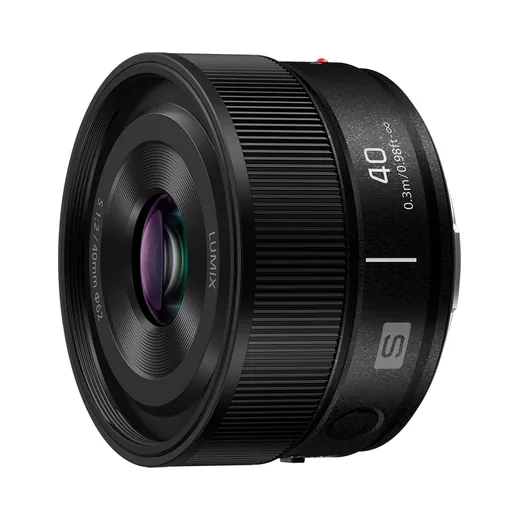
Native, bright and 144 g. The lens that keeps the S9 small.
Check price on Amazon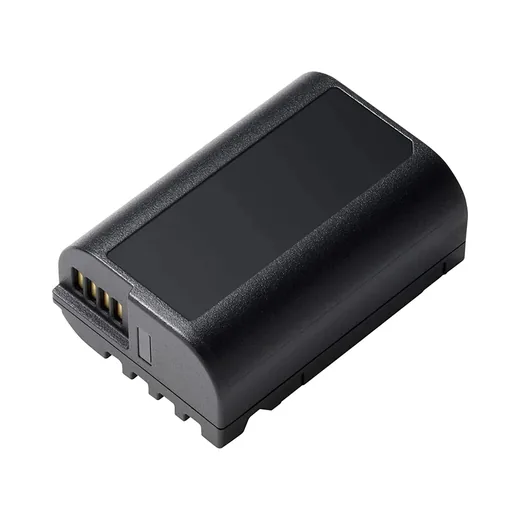
The S9's compact battery drains fast. A spare is the most useful thing you can add.
Check price on Amazon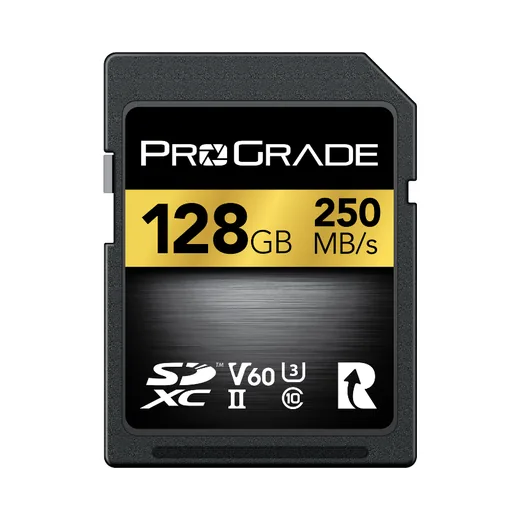
Loads LUTs by card and covers every S9 video mode with room to spare.
Check price on AmazonMore picks for the S9: small lenses, SD cards and accessories.
LUMIX S9 LUT FAQ
How do I install a LUT on the LUMIX S9?
Two ways. Transfer the .cube wirelessly with the free LUMIX Lab app (add to library, pair the S9, Transfer to Camera), or copy the .cube to an SD card and load it on the S9 under Custom Menu, Photo Quality, LUT Library, Load. Then press the LUT button and shoot. Full steps are in our install guide.
How many LUTs can the LUMIX S9 hold?
The S9 stores up to 39 LUTs in-camera at once, so you can keep a shelf of looks ready and switch between them with the dedicated LUT button.
Do Real Time LUTs change the RAW file on the S9?
No. The look is baked into the JPEG as you shoot, while the RAW is saved untouched alongside it, so you can always grade differently later.
Will these LUTs work on the LUMIX S9?
Yes. They are .cube LUTs made for LUMIX Real Time LUT, which the S9 supports. They also work on the S5II, S5IIX, S1II, S1RII, GH7, G9II and L10, and in desktop editors like DaVinci Resolve, Premiere and Final Cut.
What is a Real Time LUT on the S9?
It is a look-up table the S9 applies live as you shoot, so the colour grade is previewed in the viewfinder and baked into the JPEG. Read more in what is a LUMIX Real Time LUT.
Does the LUMIX S9 have Real Time LUT?
Yes. The S9 has Real Time LUT built in, and it is the first full-frame LUMIX with a dedicated LUT button on the body, so you switch looks with one press. Load a .cube, choose it under Photo Style, and every JPEG is graded in-camera.
What is the best LUT for the LUMIX S9?
The best one is whichever matches the look you are after. All seven of our film looks work on the S9; the quickest way to find yours is the look finder, or browse all the looks.
Do these LUTs work for video on the S9?
Yes. Real Time LUT applies to both photos and video on the S9, so your look is baked into footage as you record. The same .cube also grades your clips in editors like DaVinci Resolve and Premiere.
Real Time LUT or My Photo Style on the S9 — what's the difference?
Real Time LUT is the look itself; My Photo Style is where you save it for one-press recall. We break it down in Real Time LUT vs My Photo Style, and you can load looks with the LUMIX Lab app.