Method A: wirelessly, via LUMIX Lab
The fastest route. Panasonic's free LUMIX Lab app sends the LUT to your camera over Wi-Fi, no card swapping.
- Save the .cube to your phone. After buying, your LUT arrives by email. Save the .cube file somewhere you can find it.
- Import it into LUMIX Lab. Open the app, add the LUT to your library, then pair your camera and tap Transfer to Camera.
- Pick a slot. Your camera holds up to 39 LUTs at once, so keep a whole shelf of looks ready.
- Shoot. On the S9, press the dedicated LUT button, choose your look, and every JPEG comes out graded. The RAW is saved untouched alongside it.
Method B: straight from an SD card
Prefer to skip the app, or on a body without it? Load the same file directly through the camera menu.
- Copy the .cube to your card. Drop the file into the root folder of your SD card, not a subfolder, and put the card in the camera. Our files ship pre-named for this (LUMIX only reads names of 8 characters or fewer, letters and numbers only, on SD and SDHC cards). Once loaded you can rename it to anything you like with Edit Title in the LUT Library.
- Open the LUT Library. Go to Menu, then Custom Menu, Photo Quality, LUT Library, then Load and select your file.
- Dial it in. Set LUT Opacity to the level recommended for your look (each look page lists it), or dial it to taste.
- Save your look. Store it into a My Photo Style slot so it is one press away every time you shoot.
A Real Time LUT is applied only to the JPEG your camera renders. Your RAW is saved completely untouched, so you always keep full latitude to grade it differently later. The same .cube file also works in DaVinci Resolve, Premiere Pro, Final Cut and Lightroom.
Amazon affiliate links. As an Amazon Associate, LumiLUTs earns from qualifying purchases, at no extra cost to you.
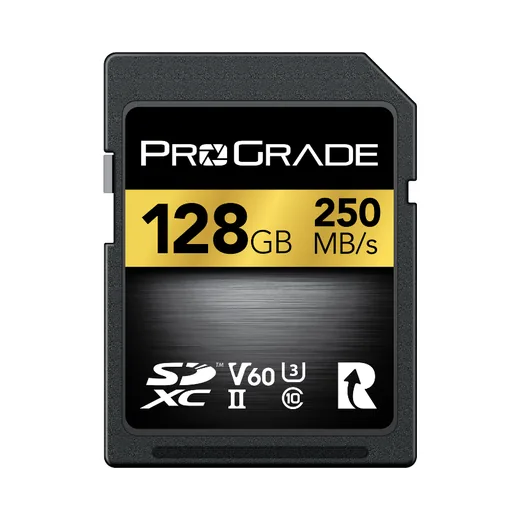
Plenty for the S9 and S5II. High-bitrate bodies like the S5IIX want V90.
Check price on Amazon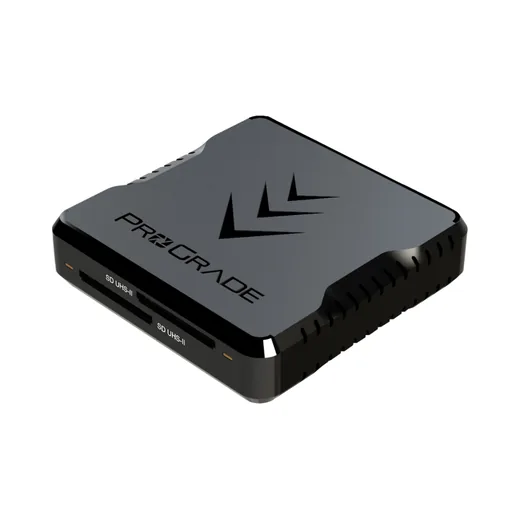
Many laptops have no SD slot. This copies the .cube across in seconds.
Check price on Amazon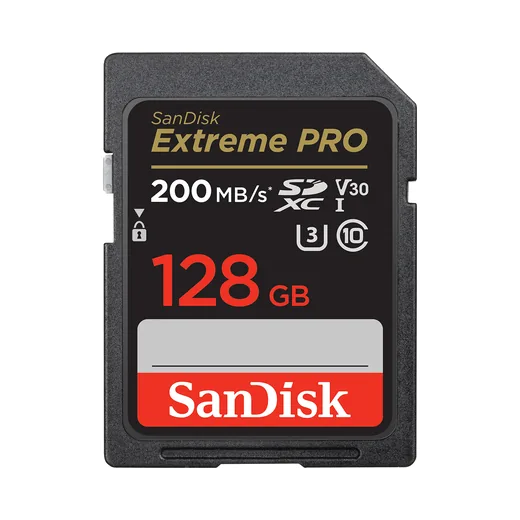
A dependable low-cost card for loading LUTs and shooting stills.
Check price on AmazonWhich speed does your camera need? See the SD card guide.
Which LUMIX cameras support this
Any LUMIX with the Real Time LUT feature. If your camera has a Photo Style called Real Time LUT, you are set:
On older LUMIX bodies without the feature, you can still use the same .cube files in editing software. For the full picture on what the feature does, read what a LUMIX Real Time LUT is.


Our Kodak Portra 400 rendering: warm, forgiving skin tones and gentle contrast that holds together in almost any light.
A 33-point .cube plus the illustrated install guide. Instant download, yours forever, personal and commercial use.